
Guides › Save a chat as Word
How to save a ChatGPT chat as a Word document
Copying from ChatGPT into Word often brings ** and ## marks and broken tables. Here is how to get a clean Word file.
The quick answer
Copy and paste works for short answers. For a whole chat – or anything with tables – save it straight to a .docx file with a free extension such as Clipfold.
Way 1 – Copy and paste
- Click the copy icon under an answerIt is under every ChatGPT answer.
- Paste into WordUse Ctrl + V (⌘ + V on a Mac).
Good to know: depending on where you paste, you may see ** around bold words, # signs before headings, or tables that turn into plain text.
Way 2 – Clipfold “Clean copy”
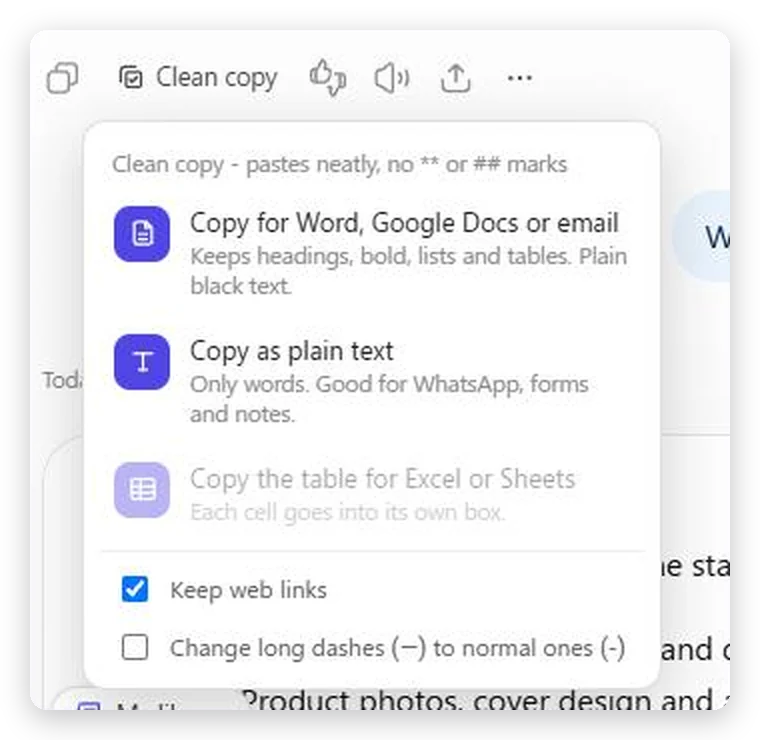
Clipfold adds a Clean copy button next to ChatGPT’s own copy button. Choose “Copy for Word, Google Docs or email” and paste – headings, bold, lists and tables come out right.
Way 3 – Save the whole chat as .docx
- Open the chat and click Save chatClipfold’s purple button at the top right.
- Choose WordWhole chat or only some parts.
- Click SaveA .docx file goes to your Downloads folder – opens in Word, Pages and Google Docs.
Get clean Word files from ChatGPTFree Chrome extension · no sign-up · your chats never leave your computer
Add to Chrome