
Guides › Save a chat as PDF
How to save a ChatGPT chat as a PDF
Three ways to turn a ChatGPT conversation into a PDF – the whole chat or just the part you need – and which one to use.
The quick answer
ChatGPT has no “Save as PDF” button. You can print the page to PDF, ask ChatGPT to email you all your data, or use a free extension such as Clipfold that saves the chat as a clean PDF in two clicks.
Way 1 – Print the page (built into your browser)
- Open the chatGo to chatgpt.com and open the conversation.
- Press Ctrl + POn a Mac press ⌘ + P.
- Choose “Save as PDF”Pick it as the printer, then click Save.
Good to know: ChatGPT only keeps the part of a long chat that is on screen, so the PDF can miss messages, and it often includes the sidebar and buttons.
Way 2 – ChatGPT’s own data export
- Open SettingsClick your name or picture, then Settings.
- Data controls → Export dataConfirm the export.
- Check your emailChatGPT emails you a ZIP file with all your chats. It can take a while.
Good to know: you get every chat at once as web pages and data files, not a tidy PDF of one chat.
Way 3 – Clipfold (free extension)
- Add Clipfold to ChromeIt is free and needs no sign-up. Works in Chrome, Edge and Brave.
- Open any chat and click Save chatA purple button appears at the top right of ChatGPT.
- Pick PDF and click SaveChoose the whole chat or only some parts. Your file opens ready to save.
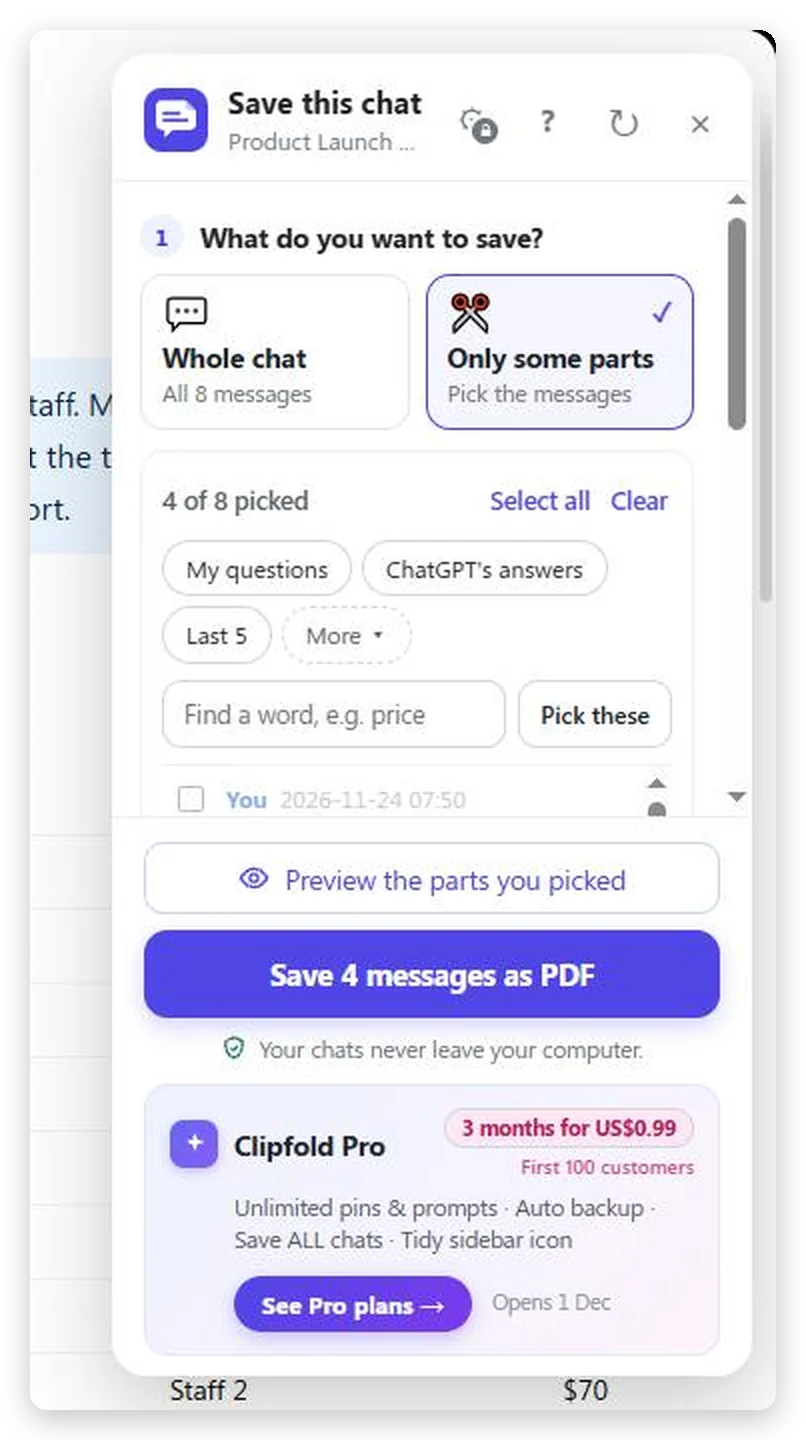
Clipfold reads the whole chat – not just what is on screen – and keeps tables, lists, code and pictures. The PDF is made on your own computer; your chat is never uploaded.